When managing a delivery fleet, precise route and vehicle settings are crucial to ensure efficiency, balance, and adherence to constraints. In this guide, we will dive deep into the Fareye Route Vehicle Settings, explaining how to configure routes and vehicles effectively based on real-world considerations. This article covers everything from basic route goals to advanced multipart shipment settings, helping you optimize your fleet operations for maximum productivity and load balancing.
Whether you’re new to route planning or looking to refine your existing setup, understanding these settings will empower you to make informed decisions that enhance your delivery system. Let’s begin by exploring the fundamental screen elements and configuration options before moving into advanced settings that allow for consolidation and optimization of stops.
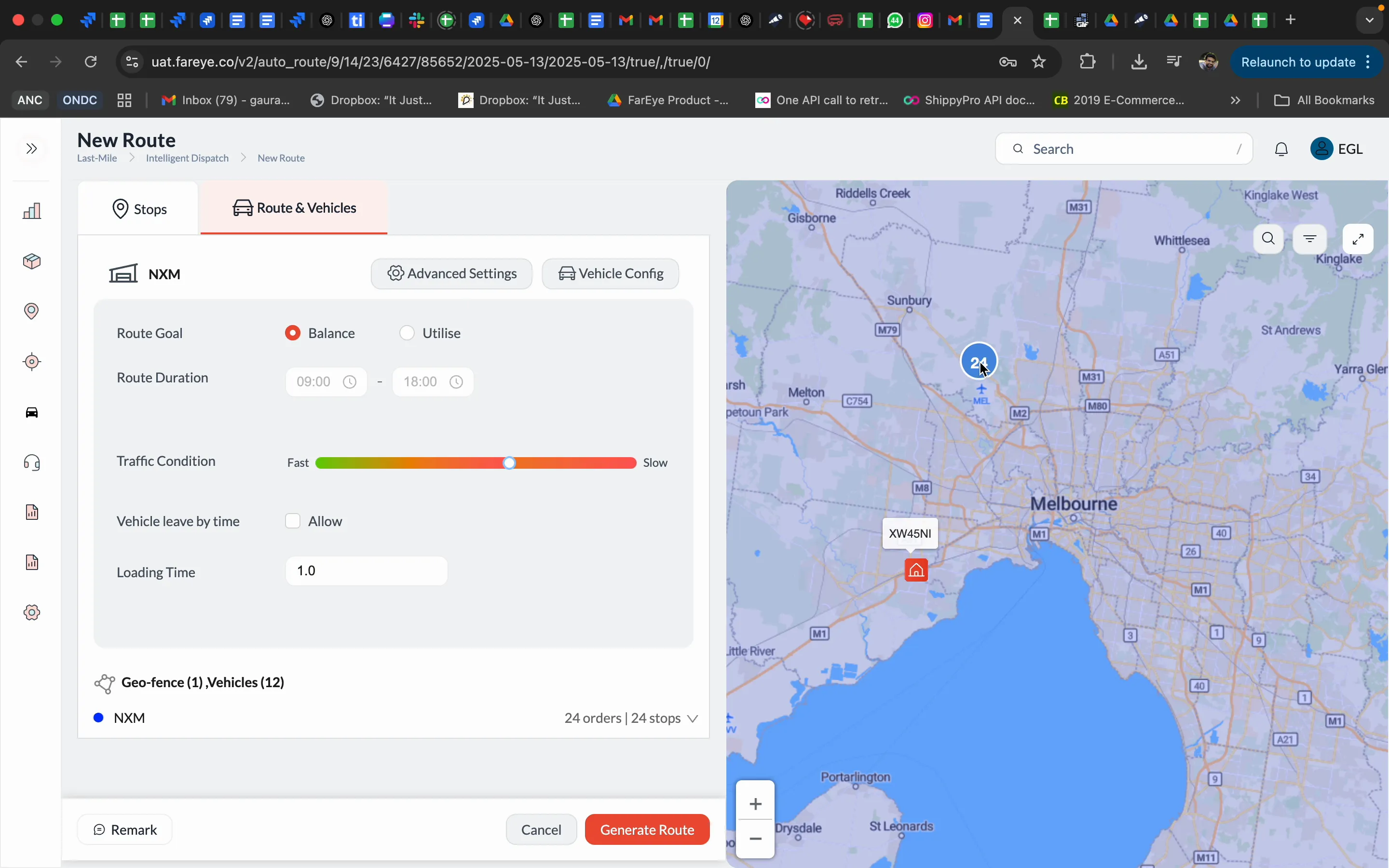
Table of Contents
- Getting Started: Overview of the Route Planning Screen
- Basic Route Settings Explained
- Vehicle Configuration and Adjustments
- Order Slot Time and Service Time
- Advanced Settings: Multipart Shipments and Service Time Calculation
- Saving and Reusing Settings
- Summary of Key Fareye Route Vehicle Settings for EGL
- Frequently Asked Questions (FAQ)
- Conclusion
Getting Started: Overview of the Route Planning Screen
At the heart of the Fareye route planning interface is the hub location, prominently displayed with its associated consignments. For example, the NXM hub, which refers to the Melbourne hub, shows 24 consignments waiting to be planned into routes for the day. This snapshot provides a clear view of the delivery workload and operational hub, setting the stage for configuring your routes and vehicle settings.
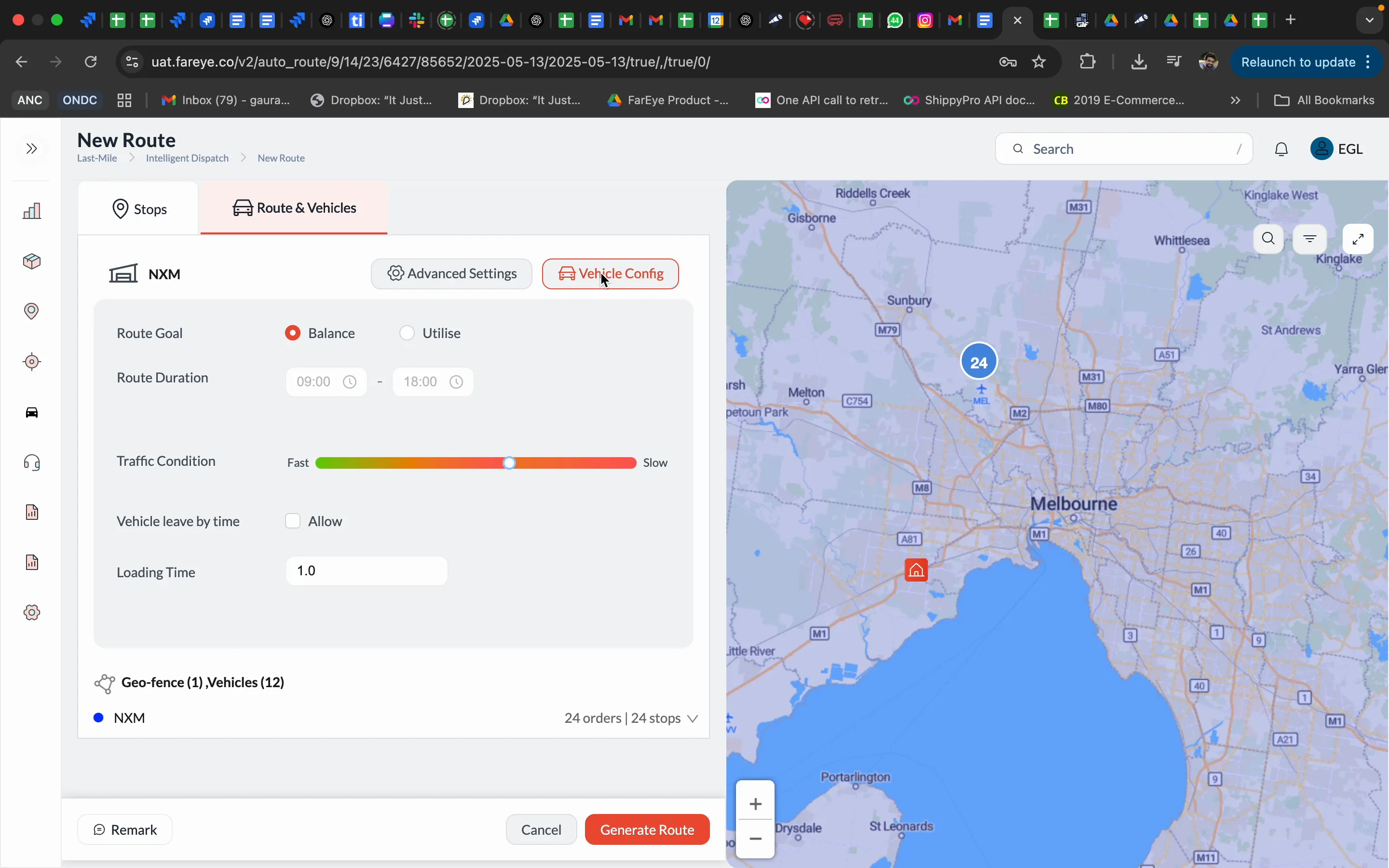
From this screen, you can directly access vehicle configuration without navigating away, streamlining the process of adjusting your fleet settings as needed. This integration saves time and ensures that any changes in vehicle availability or capacity immediately reflect in the routing process.
Basic Route Settings Explained
Route Goal: Balance vs. Utilize
The first and one of the most important settings to understand is the route goal. There are two primary options:
- Balance: This option aims to distribute the load evenly across the fleet.
- Utilize: This option attempts to minimize the number of vehicles used to complete all deliveries.
For Fareye users, especially those operating under EGL constraints, the balance route goal is generally recommended. However, it’s essential to understand that "balance" does not mean equal distribution among all vehicles indiscriminately. Instead, it balances the load only among vehicles that share common tags or territories.
For example, if three vehicles share the same territory tag "100," the routing engine will balance the consignments tagged with "100" among these three vehicles. If only one vehicle has the tag "100," all consignments with that tag will be assigned to that vehicle, assuming other constraints like weight, vehicle utilization, and stop limitations are met.
This ensures that deliveries remain territorially consistent while optimizing load distribution within those territories.
"Balance as a route goal will not balance the load across the fleet. It will only balance the load between the vehicles where a tag or a territory is shared."
Conversely, the utilize goal focuses on using the fewest vehicles possible. While this may sound efficient, it is not suitable for EGL operations because it can leave several vehicles unused and some consignments unplanned. For example, if you have 20 vehicles, the "utilize" setting might use only 14 vehicles, leaving 6 idle and some consignments unassigned, which is impractical for consistent delivery coverage.
Route Duration
The route duration defines the time window for your deliveries, such as 9 AM to 6 PM. While it might seem logical to set this in the route settings, it’s best to avoid specifying it here because the vehicle configuration already includes shift start and end times. If you enter route duration here, it will override the vehicle-level shift times, potentially causing conflicts.
Traffic Condition
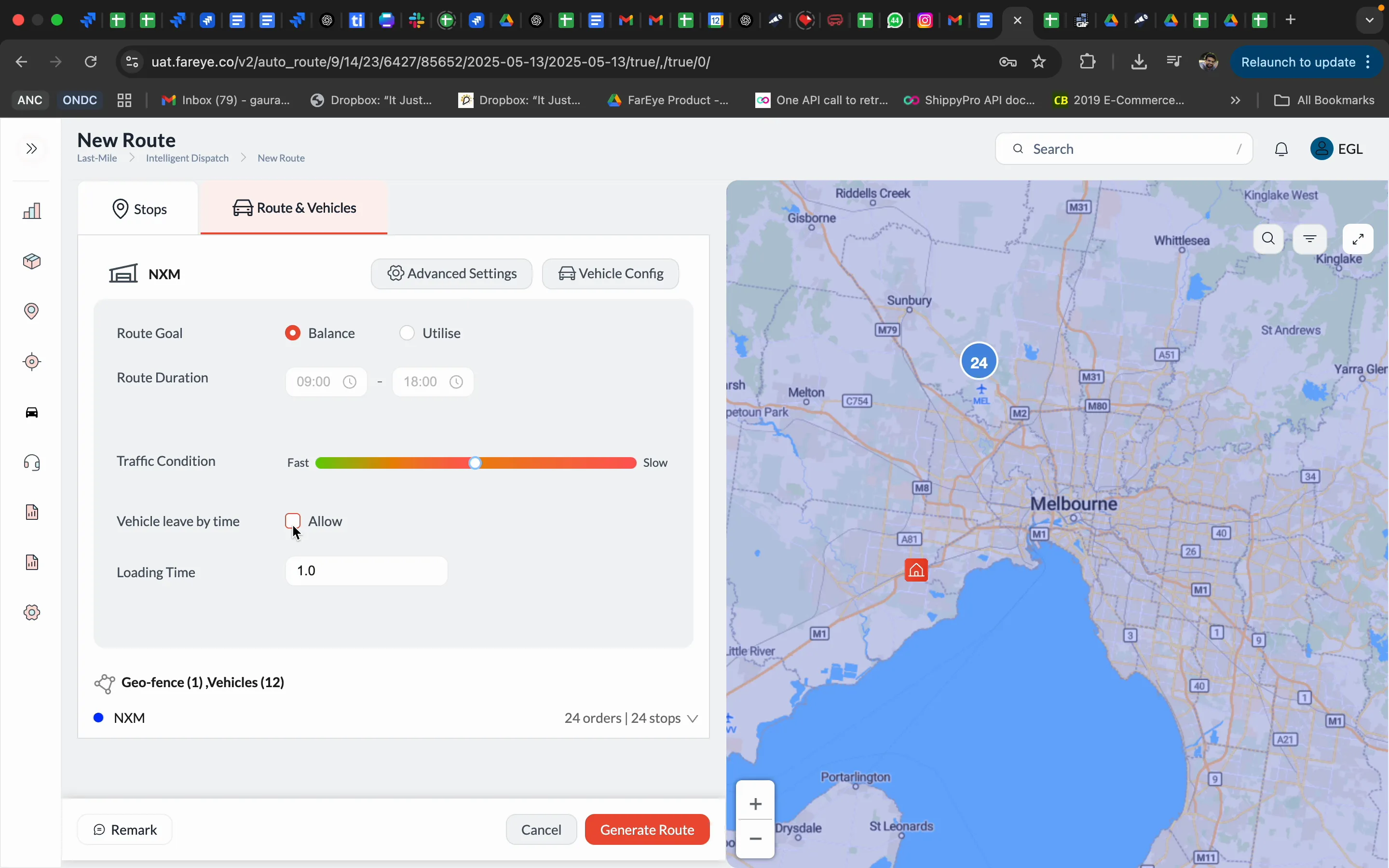
Fareye allows you to adjust traffic conditions between "fast" and "slow," which modifies the estimated travel time (ETA) accordingly. For example, if the map provider estimates 30 minutes from point A to point B, setting traffic to 25% faster will reduce the ETA by 25%.
However, it’s advisable to keep this setting neutral or balanced because the map provider already considers traffic dynamically. Artificially speeding up or slowing down ETAs could distort the accuracy of your route planning.
Vehicle Leave By Allowed Time
This setting controls whether vehicles leave the hub based on the shift start time or the first stop's delivery slot. For example, if a consignment has a delivery window from 10 AM to 6 PM and is planned as the first stop, the vehicle could theoretically leave the hub closer to 9:30 AM (considering travel time), even if the shift starts at 7 AM.
For EGL users, it’s typically unnecessary to enable this option because most consignments have flexible or no strict delivery slots, and vehicles generally start their shifts at the hub within a reasonable timeframe.
Loading Time
Loading time accounts for the time spent preparing the vehicle before departure. If your shift starts at 9 AM and you enter a loading time of 60 minutes, the route effectively begins at 8 AM to accommodate loading.
However, since loading times vary between vehicles (some may take 2 hours 45 minutes, others 2 hours 15 minutes), it’s best to set this to zero in Fareye and manage loading times individually outside of this setting to avoid inconsistencies.
Vehicle Configuration and Adjustments
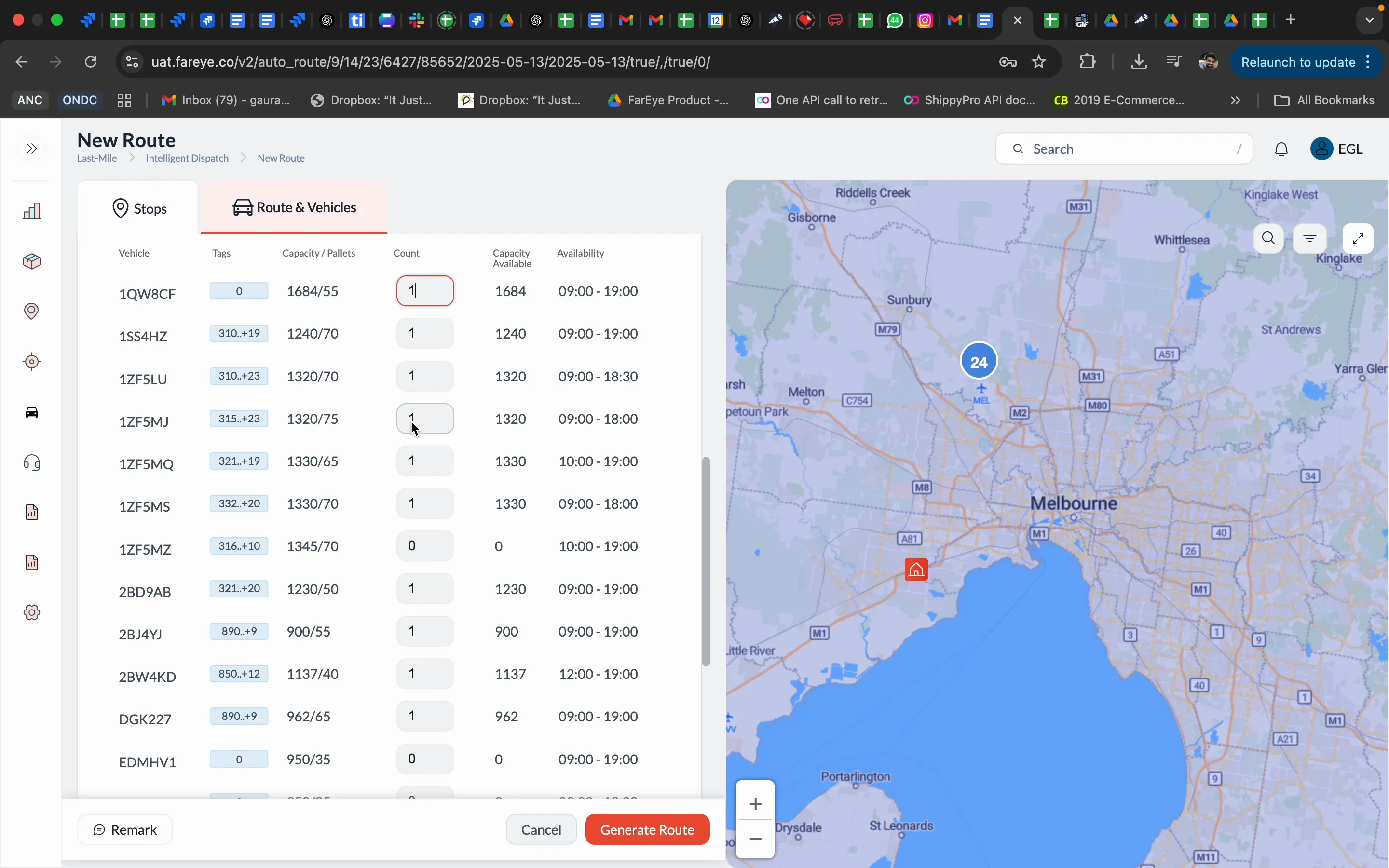
The vehicle configuration tab lists all vehicles, their tags, and capacities. This is where you can adjust vehicle availability on the fly without removing them from the system. For example, if a driver is absent, simply set the vehicle count to zero to exclude it from route planning for the day.
This flexibility allows you to maintain accurate fleet availability data and prevents routing errors that might assign consignments to unavailable vehicles.
Order Slot Time and Service Time
Adhering to order slot times is crucial when consignments have specific delivery windows. The setting "Order Slot Time" ensures that consignments are scheduled within their designated slots.
Service time refers to the time taken to complete deliveries at each stop. This can be set at different levels:
- Stop level: A fixed time per stop (e.g., 10 minutes).
- Carton level: Service time per carton within a consignment, which can be more granular and accurate.
For simplicity, you can set a default service time (such as 10 minutes) per stop initially, but advanced settings allow for more precise control.
Advanced Settings: Multipart Shipments and Service Time Calculation
Multipart Shipment
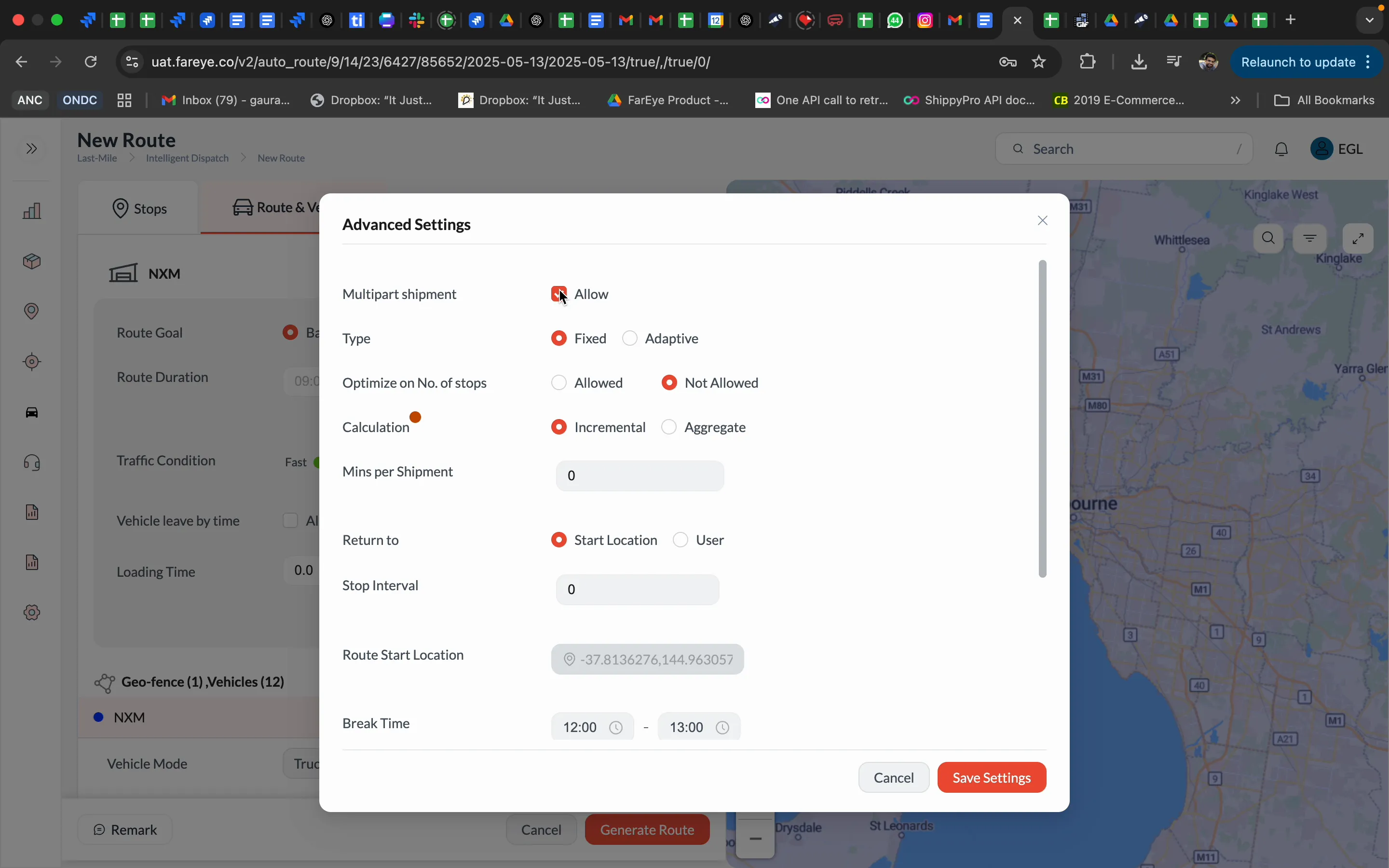
Allowing multipart shipments enables the routing engine to consolidate multiple consignments destined for the same stop into a single stop, improving route efficiency.
This setting has two modes:
- Fixed: Respects stop limitations and pallet capacities set in vehicle configuration.
- Adaptive: Allows the algorithm to optimize stops dynamically but ignores stop limitations.
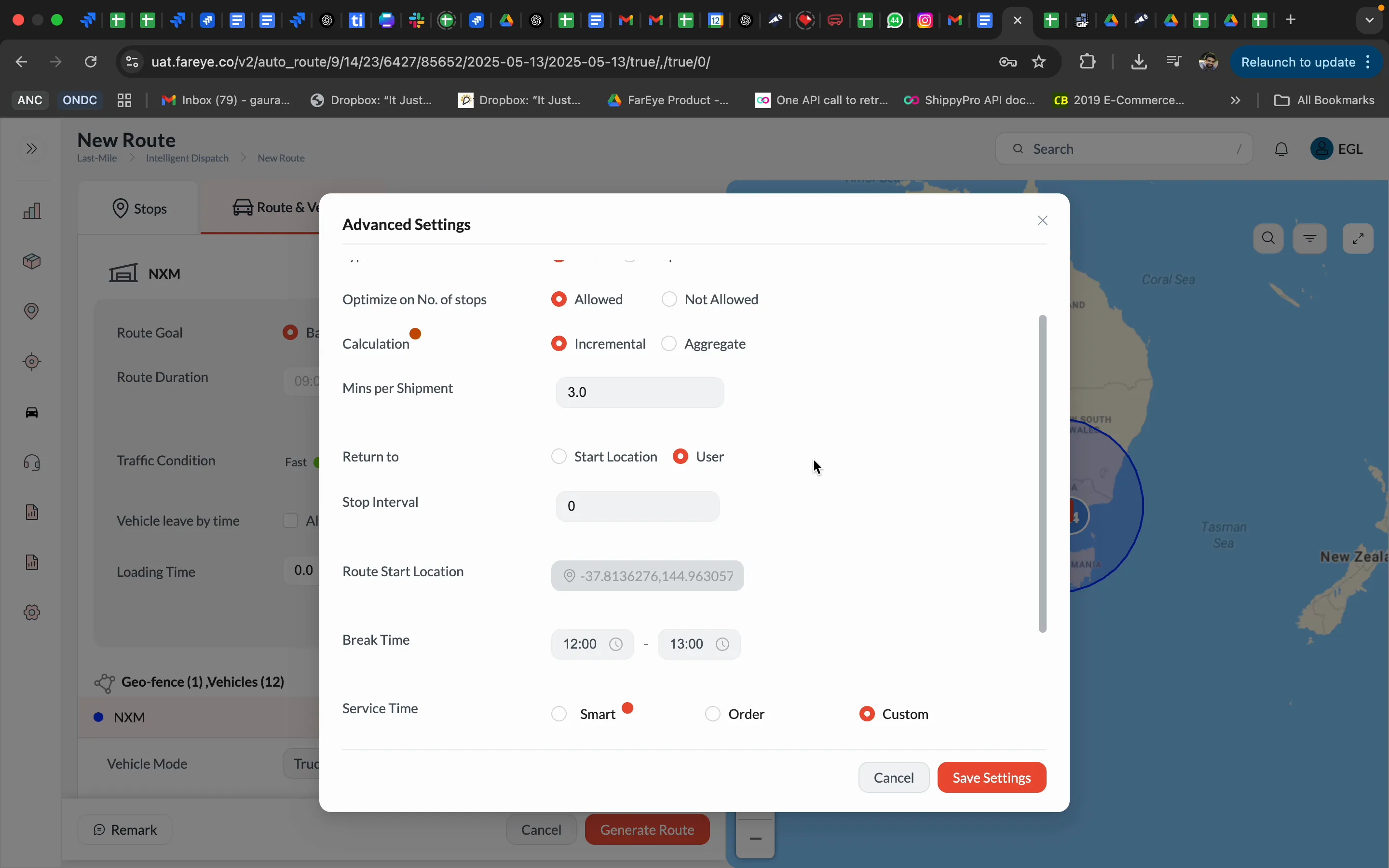
For EGL users, fixed mode with "optimize number of stops allowed" enabled is recommended. This ensures that the routing engine adheres to your physical constraints, such as pallet capacity and stop limits, while consolidating shipments effectively.
"If you keep this fixed and optimize the number of stops allowed, only then your stop limitations will be adhered to."
Service Time Calculation: Incremental vs. Aggregate
Service time calculation impacts how the total delivery time at a stop is computed when multiple consignments are present:
- Aggregate: Sums the service times of all consignments at a stop.
- Incremental: Assigns a full service time for the first carton and a reduced time for subsequent cartons.
Incremental calculation is preferred as it reflects the reality that subsequent deliveries at the same stop generally take less time than the first, providing a more accurate estimate.
For example, if the first carton requires 10 minutes, additional cartons might require only 3 to 5 minutes each.
Return to User vs. Return to Start Location
In route planning, you can specify whether vehicles should return to the start location (hub) or to the user’s location after completing deliveries. For Fareye and EGL users, selecting "Return to User" is standard practice, meaning vehicles end their routes at the last delivery point or driver location.
Additional Settings
- Stop Interval: Typically set to zero unless specific intervals between stops are required.
- Route Start Location: Defines the hub or starting point for routes.
- Break Time: Time allocated for driver breaks during routes.
- Service Time Mode: Options include smart (predictive) and custom service time. The smart option is a beta feature not yet enabled for EGL due to limited historical data.
Saving and Reusing Settings
Once all configurations are set, saving your settings ensures they persist across future routes. This consistency helps maintain operational standards and reduces the need for repetitive adjustments.
Settings like multipart shipment allowance, service time calculation, and route goals remain active, enabling you to build on a stable routing foundation.
Summary of Key Fareye Route Vehicle Settings for EGL
- Route Goal: Use Balance to distribute loads among vehicles sharing common tags or territories.
- Vehicle Config: Adjust vehicle availability by modifying vehicle count rather than removing vehicles.
- Route Duration: Avoid setting here; use vehicle shift times instead.
- Traffic Condition: Keep neutral to allow map provider dynamic traffic adjustment.
- Vehicle Leave By Allowed Time: Generally disable for EGL unless strict slot adherence is required.
- Loading Time: Set to zero due to variable loading times across vehicles.
- Multipart Shipment: Enable with fixed type and optimize number of stops to consolidate consignments and respect stop limits.
- Service Time Calculation: Use incremental to allow carton-level service time specification.
- Return to Location: Use "Return to User" rather than returning to start location.
Frequently Asked Questions (FAQ)
Q1: Why should I use the balance route goal instead of utilize?
Balance distributes consignments evenly across vehicles sharing the same territory or tags, ensuring better load management. Utilize minimizes the number of vehicles used, which can cause underutilization of your fleet and unplanned consignments in EGL's context.
Q2: Can I set a single loading time for all vehicles?
No, because loading times vary significantly between vehicles. It's better to set loading times individually or manage them outside the route settings and keep the loading time in Fareye set to zero.
Q3: What happens if I select adaptive multipart shipment?
Adaptive mode lets the algorithm optimize stops without considering stop limitations, which can lead to exceeding pallet capacities or stop counts. Fixed mode with optimization respects these limits, making it more suitable for controlled operations.
Q4: How does incremental service time calculation improve route accuracy?
Incremental service time assigns full time to the first carton and reduced time to subsequent cartons at the same stop, reflecting real-world delivery conditions more accurately than summing all service times.
Q5: Should I adjust traffic conditions manually?
No, it’s best to leave traffic conditions neutral so that the map provider can dynamically adjust ETAs based on real-time data, ensuring accurate routing recommendations.
Q6: How do I handle vehicle absence for a day?
Instead of removing the vehicle from configuration, set its count to zero. This way, the vehicle is excluded from routing without losing its configuration data.
Q7: What does "return to user" mean in routing?
It means the vehicle ends its route at the last delivery point or driver’s location rather than returning to the starting hub, optimizing route efficiency and driver convenience.
Conclusion
Mastering Fareye Route Vehicle Settings is essential for optimizing delivery operations, especially for EGL users managing complex fleets with specific territorial constraints. By understanding and correctly applying route goals, vehicle configurations, multipart shipment options, and service time calculations, you can significantly improve route efficiency, load balancing, and adherence to operational limits.
Remember to keep settings aligned with your business needs, avoid overriding critical vehicle-level configurations unnecessarily, and leverage Fareye’s advanced features to consolidate stops and optimize service times. With these settings fine-tuned, your routing engine will work smarter, delivering better outcomes for your fleet and customers alike.


